Android smartphones have become an essential part of our daily lives. We use them for chatting, social media, online shopping, banking, photography, entertainment, studying, and even professional work. Because so much personal and financial information is stored on our phones, keeping an Android device secure is more important than ever.
Hackers and noncriminals often target smartphones through malicious apps, fake websites, phishing messages, unsafe downloads, weak passwords, and outdated software. Malware can potentially steal sensitive information, display unwanted advertisements, monitor activity, or cause other security problems.
The good news is that you do not need to be a cybersecurity expert to improve your phone’s protection. By following a few simple habits, you can significantly reduce common security risks. Here are 10 easy and practical ways to protect your Android phone from hackers and malware.
1. Keep Your Android Software Updated

One of the easiest ways to improve your phone’s security is to keep Android and your device’s security patches updated. Manufacturers regularly release updates that may include security fixes, bug improvements, and other protections.
Hackers can sometimes take advantage of known security weaknesses in older software. If your phone has an available security update, installing it can help protect your device against vulnerabilities that have already been addressed by the manufacturer.
Go to your phone’s Settings and look for Software Update, System Update, or a similar option. You should also keep important applications updated through the official app store.
2. Download Apps Only from Trusted Sources

Apps are one of the most common ways malware can reach a smartphone. A malicious application may look like a normal game, utility, cleaner, or security tool while secretly performing unwanted activities.
Whenever possible, download applications from the official Google Play Store or another trusted source provided by your device manufacturer. Avoid downloading PK files from unknown websites simply because they offer a paid application for free.
Before installing an app, check its developer, reviews, download information, and requested permissions. If an application appears suspicious or asks for unnecessary access, consider avoiding it.
3. Check App Permissions Carefully

Many Android applications request access to features such as your camera, microphone, contacts, location, files, and messages. Some permissions may be necessary for an app to work correctly, while others may not be relevant to its main purpose.
For example, a simple calculator application generally should not need access to your contacts or microphone. Reviewing permissions can help you understand what an application is allowed to access.
Open Settings > Privacy > Permission Manager or a similar section on your Android phone. Review sensitive permissions and remove access that an application does not reasonably need.
4. Use a Strong Screen Lock

Your phone’s screen lock is the first line of physical protection. If someone gets hold of your unlocked phone, they may be able to access messages, photographs, emails, accounts, and other private information.
Use a strong PIN, password, pattern, fingerprint, or supported bio metric security method. Avoid simple combinations such as 1234, 0000, or easily guessed dates.
A longer PIN or password can provide stronger protection. If your phone supports fingerprint or face authentication, you can use it alongside a secure backup PIN or password.
5. Avoid Suspicious Links and Phishing Messages

Noncriminals often use fake messages to trick people into clicking dangerous links. These messages may claim that you have won a prize, your account needs verification, your package is waiting, or your bank account has a problem.
Before clicking a link, carefully check the message and its sender. If something looks unusual or creates unnecessary urgency, avoid opening the link.
Banks, social networks, shopping platforms, and other services can be impersonated through fake messages. When you need to access an account, it is generally safer to open the official application or manually visit the legitimate website instead of following an unexpected link.
6. Use Google Play Protect

Android includes built-in security features designed to help protect users from potentially harmful applications. Google Play Protect can scan apps and help identify applications that may pose security risks.
Make sure Play Protect is enabled on your phone. You can usually find it through the Google Play Store by opening your profile menu and selecting Play Protect.
It is also important to remember that no security feature can replace careful browsing and downloading habits. Think of built-in protection as one layer of security rather than your only defense.
7. Avoid Public W-fit for Sensitive Activities
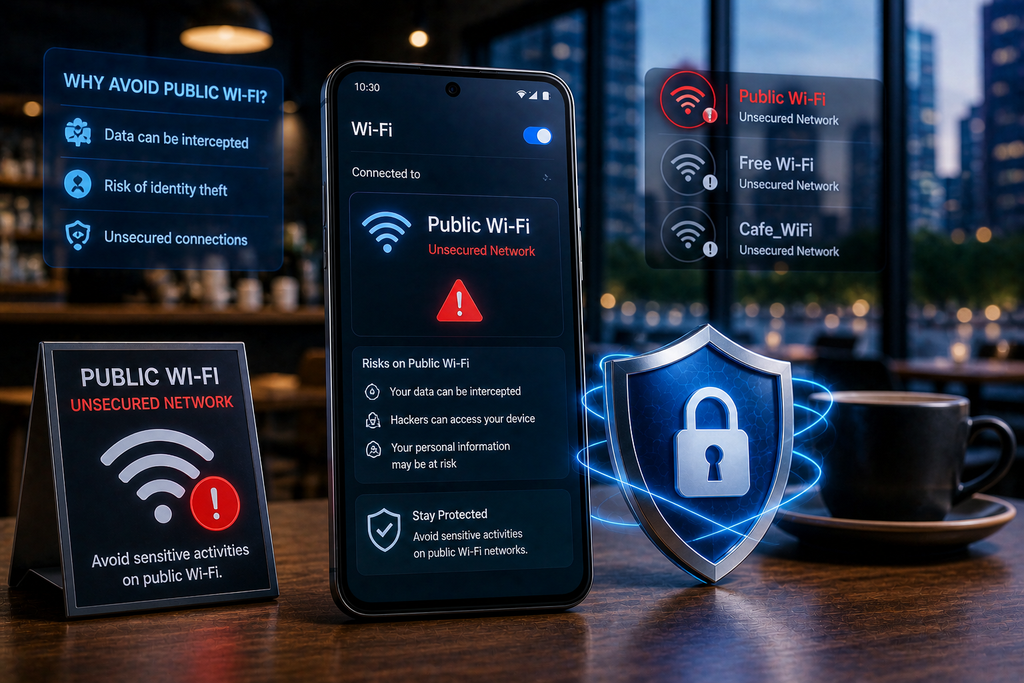
Public W-fit can be convenient in airports, hotels, restaurants, shopping centers, and other locations. However, you should be cautious when using unfamiliar networks, especially for sensitive activities.
Avoid performing important financial transactions or entering sensitive information on an entrusted network. If you need to use public W-fit, make sure your phone and applications are updated and consider using a reputable VAN when appropriate.
Also, avoid automatically connecting to unknown W-fit networks. Turn off W-fit when you do not need it, particularly when moving through unfamiliar locations.
8. Be Careful with Free Apps and Files

Free applications, games, movies, documents, and other downloads can sometimes be used to distribute malware. Noncriminals may disguise harmful files as popular software or useful tools.
Be especially careful with websites offering modified applications, pirated games, cracked software, or premium features for free. These files may contain unwanted software or request excessive permissions.
Before downloading anything, consider whether the source is trustworthy. If an offer seems too good to be true, it is worth taking a moment to investigate before installing or opening the file.
9. Protect Your Accounts with Strong Passwords and 2FA

Your Android phone may contain access to multiple online accounts, including email, social media, cloud storage, shopping, and financial services. Protecting these accounts is an important part of smartphone security.
Use unique and strong passwords for important accounts. Avoid using the same password everywhere because if one account is compromised, attackers may try the same credentials on other services.
Where available, enable two-factor authentication (2FA). This adds another verification step when signing in and can provide additional protection even if your password is exposed.
A password manager can also help you create and safely manage strong, unique passwords without having to remember every password yourself.
10. Back Up Your Important Data Regularly
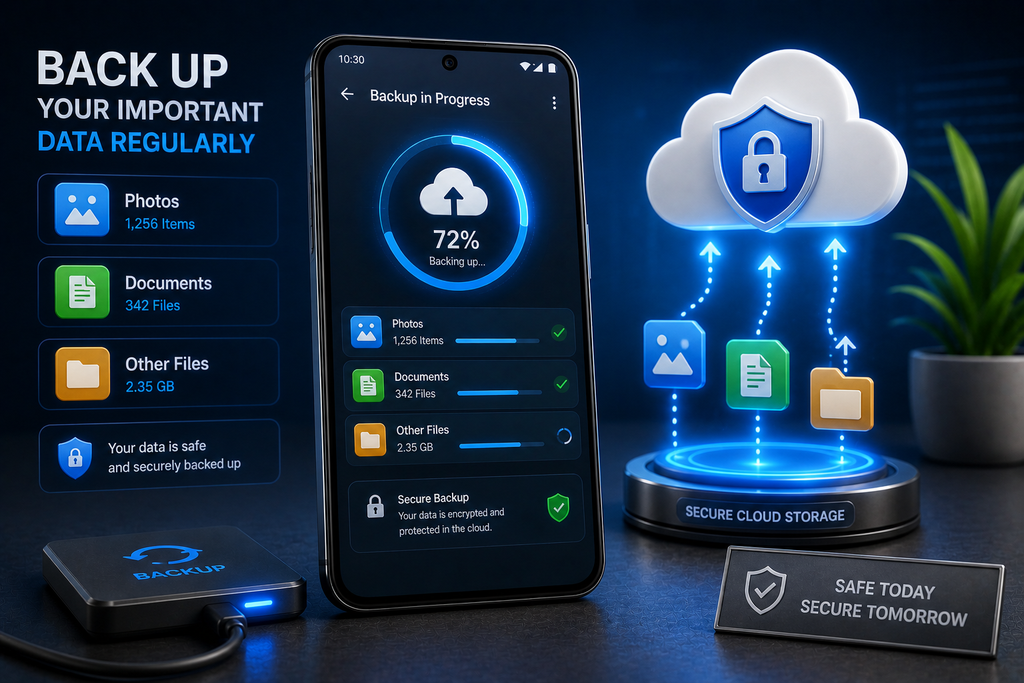
Even with good security habits, problems can still happen. Your phone could be lost, stolen, damaged, or affected by malicious software. Regular backups can help you avoid losing important photographs, contacts, documents, and other files.
Use a trusted cloud backup service or another secure backup method to save important information. Check your backup settings regularly to make sure they are working properly.
Do not wait until your phone stops working to think about backups. A regular backup routine gives you an additional layer of protection and makes it easier to recover your important information when something goes wrong.
Additional Tips for Better Android Security
In addition to these 10 main steps, a few simple habits can make your Android phone even safer. Turn off Bluetooth, NFC, and location services when you do not need them. Do not leave your phone unlocked around other people, and avoid sharing sensitive information through unknown applications.
You should also regularly review the applications installed on your device. If you no longer use an app, uninstalling it can reduce unnecessary access and keep your phone cleaner.
Be cautious when giving your phone to another person. If your device supports app pinning, guest mode, or similar privacy features, these can be useful when temporarily sharing your phone.
Conclusion
Protecting an Android phone from hackers and malware does not have to be complicated. Simple habits such as keeping your software updated, downloading apps from trusted sources, checking permissions, using a strong screen lock, avoiding suspicious links, and enabling two-factor authentication can make a significant difference.
Your smartphone contains valuable personal information, so security should be treated as an everyday habit rather than something you think about only after a problem occurs. By following these 10 easy ways to protect your Android phone, you can reduce common security risks and enjoy a safer mobile experience.
Remember, smartphone security is not about taking one single action. It is about combining several layers of protection and staying alert whenever you install an application, open a link, connect to a network, or share personal information.
Stay secure today so your Android phone can remain safer tomorrow.
Hashtags
#AndroidSecurity #AndroidTips #CyberSecurity #PhoneSecurity #MobileSecurity #AndroidProtection #MalwareProtection #OnlineSafety #InternetSecurity #PrivacyProtection #SmartphoneSecurity #TechTips #TechNews #HackingPrevention #DataSecurity #DigitalSafety #AndroidPhone #CyberSafety #StaySecure #TechnologyTips
Keywords
Android security, Android phone security, protect Android phone, Android malware protection, smartphone security tips, mobile security, Android security tips, protect phone from hackers, Android hacking prevention, malware protection, phone privacy, Android privacy tips, cybersex security, mobile malware, secure Android phone, Android safety tips, smartphone protection, online security, data security, Google Play Protect, app permissions, Android security update, strong phone password, two-factor authentication, phishing protection, protect personal data, mobile privacy, cybersecurity tips.